Managing users
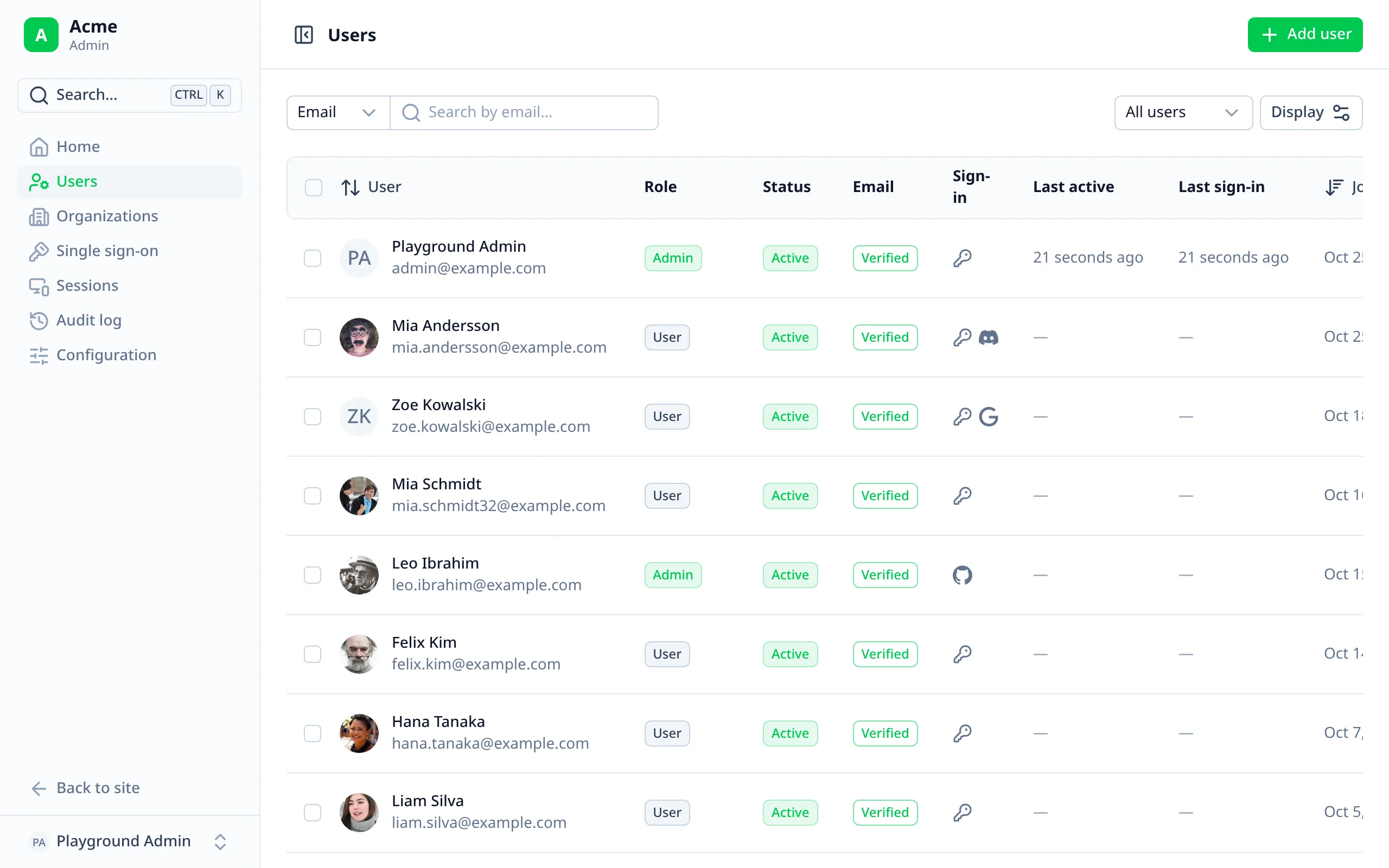
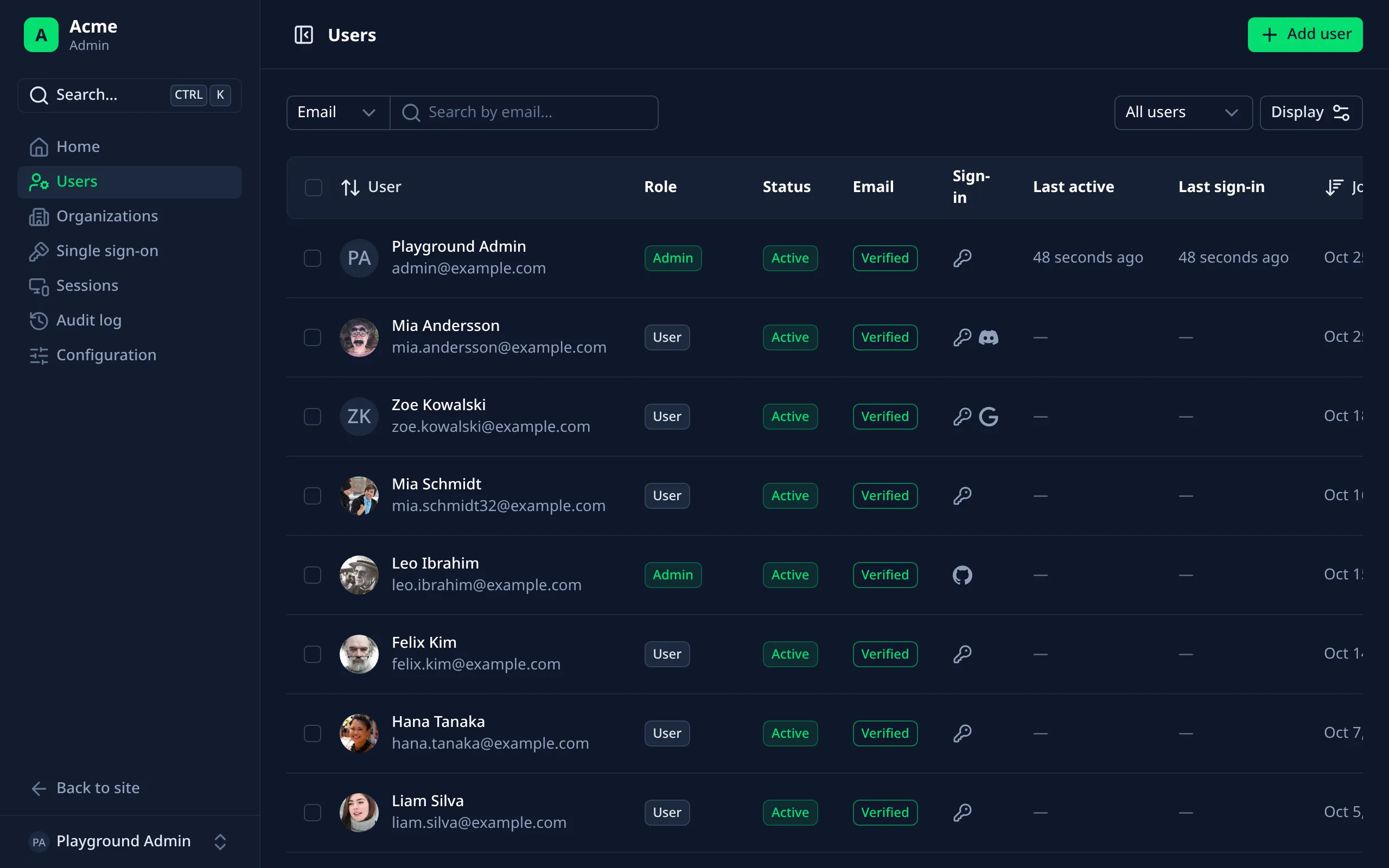
The users list
- Search by email or name, filter (admins, staff, banned, unverified, guests, two-factor off), sort and page through.
- Select rows to ban or delete several users at once.
- Columns show each user's sign-in methods (a key for email and password, a logo per provider, so users who only sign in with a provider stand out), two-factor, and, with the audit log, their last sign-in.
Adding a user
Add user asks for a name, email, an optional password and a role. "New user" on the home page, or
/admin/users?create=1, opens it straight away. Once created, the toast links to their page.
Exporting and importing
Export
Export on the users list downloads every user as a CSV file (users-<date>.csv), for staff who can list users.
It has:
name,email,emailVerifiedandrolefirst: the columns the import reads, so an export can be imported elsewhere;- their username, your app's own user fields, and the plugins' fields (phone number, two-factor, guest);
- Better Auth's
id, ban details and dates; signInMethods: their providers, withcredentialfor email and password.
Never passwords, tokens or secrets. Text a spreadsheet would run as a formula (starting with =, +, - or @) is
written with a leading ', so opening the file can't run anything. Each export is recorded in the audit log.
Import
Import creates users from a CSV file, for staff who can create users. The file needs a header row and an email
column. It reads:
| Column | What it is |
|---|---|
email | Required. Emails that already have an account are skipped, never changed. |
name | Defaults to the email's first part. |
password | Optional, within your app's length rules. Without one, people sign in another way or set one. |
role | Optional; several comma-separated. Staff need set-role to give roles. |
emailVerified | true, yes or 1 marks the email verified. |
username | With usernames on, checked as Better Auth checks them. |
| Your fields | Your app's own user fields, by name, in their types. |
Header names match in any case, with or without spaces and underscores (Email, email_verified). Other columns are
ignored, and the dialog says which.
- Choose the file. The dialog reads it in the browser and says how many users it will create.
- Optionally, email the people without a password a link to set one (with reset emails set up).
- Import. Then it lists what happened to each row: created, skipped (already has an account, or earlier in the file) or not created, and why.
Users are created through Better Auth's own createUser, with your session, so Better Auth checks the permissions and
each user created is in the audit log, as when you add one by hand. Up to 1000 users per file.
A user's page
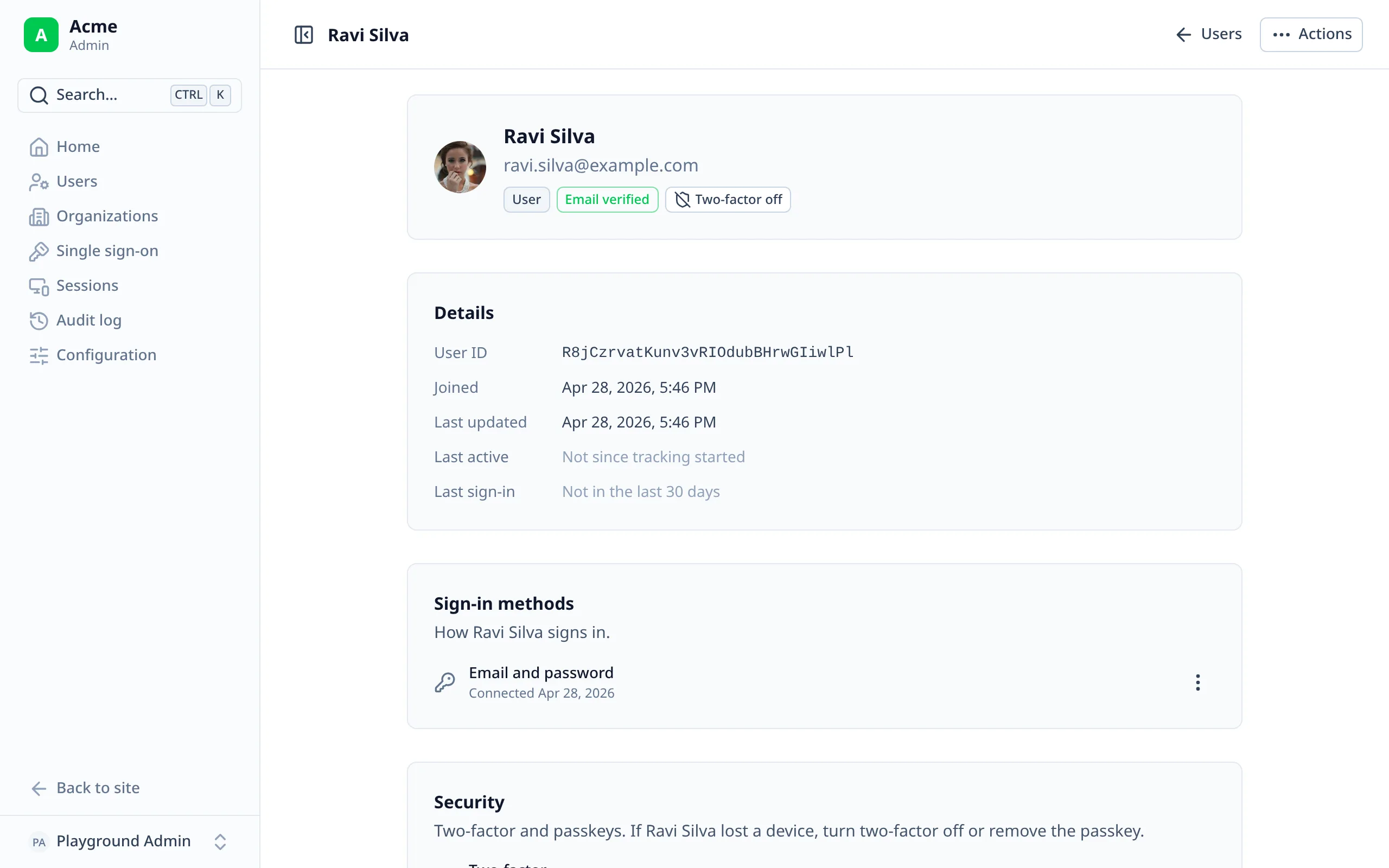
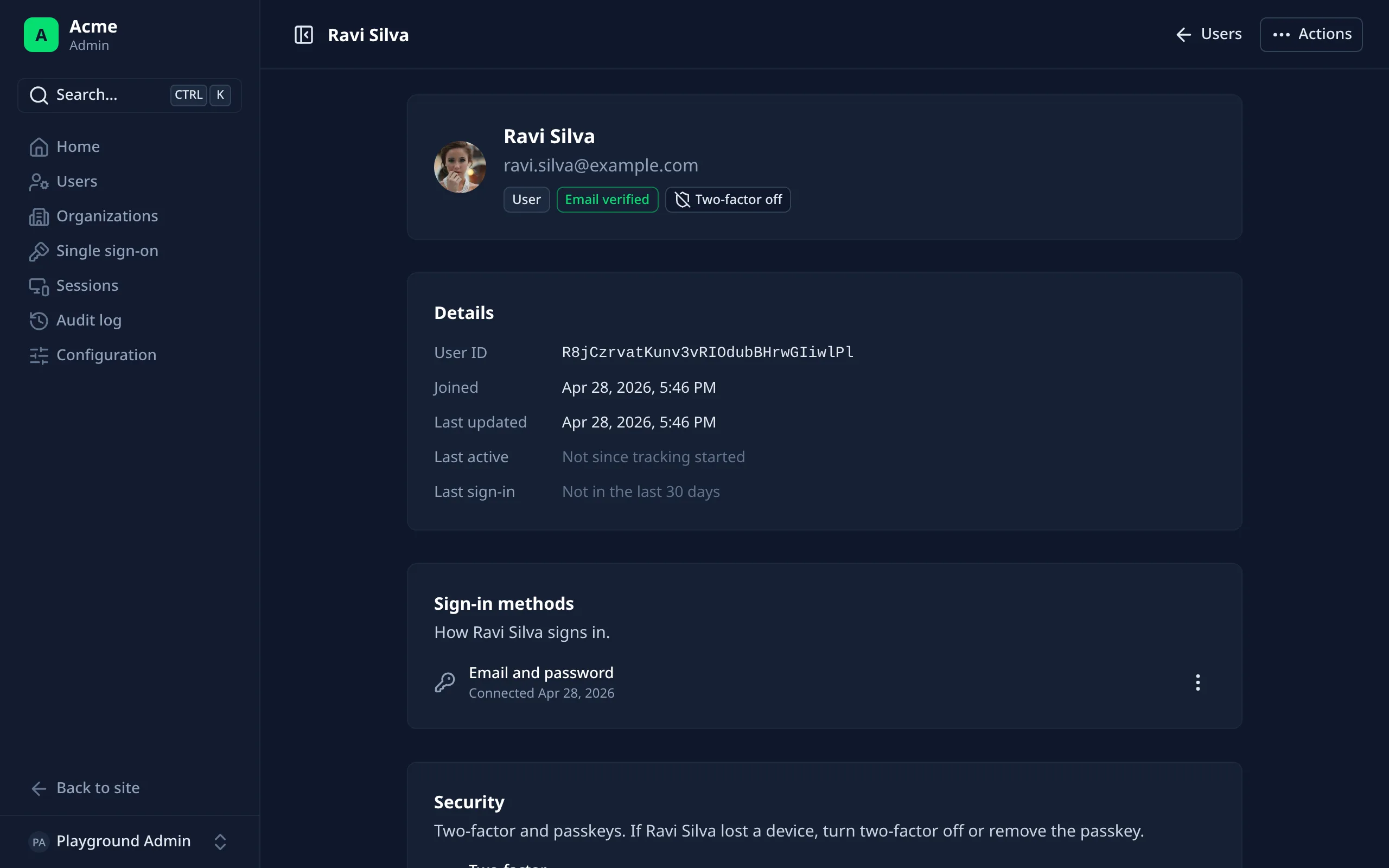
Their profile, role and status, ban details, sign-in methods, and active sessions with device, IP and last activity. Depending on what's on, also: their username, phone number, organizations, subscription, API keys, your app's own user fields, staff notes, and their history from the audit log.
What staff can do
From the row menu on the list, or the user's page:
- edit their name, email, avatar and whether the email is verified;
- change their role;
- set a password, or email them a reset link;
- resend the verification email to an unverified user;
- ban them, with a reason and an expiry, or unban them;
- sign them out of one session, or everywhere;
- remove a sign-in method;
- delete them.
Staff see only the actions their role allows. Nobody can ban, delete or change the role of their own account here, and Better Auth refuses self-bans too.
auth.api.sendVerificationEmail, through your own email and template.Removing a sign-in method
An old Google link, or their password, from the method's menu. As with Better Auth's own unlink endpoint, the last one
can't be removed, since it would lock them out, unless your Better Auth config sets
account.accountLinking.allowUnlinkingAll.
Lost a device?
With two-factor or passkeys on, each user's page has a Security card:
- Turn their two-factor off. Their authenticator app, backup codes and trusted devices stop working. Users who must have two-factor are asked to set it up again.
- Remove a passkey.
Better Auth has no admin endpoints for these, so the module does what its plugins' own disable and delete do, after
checking the user: update permission. Both are recorded in the audit log.
Signing in as a user
Impersonation lets an admin see the app as a user does. Turn it on, and add the banner to your app's layout:
export default defineNuxtConfig({
  betterAuthUi: {
    admin: { impersonation: true }
  }
})
<template>
  <UApp>
    <!-- "You're signed in as …", with Stop impersonating. -->
    <AdminImpersonationBanner />
    <NuxtPage />
  </UApp>
</template>
Sign in as is then in the row menu and on each user's page. It's Better Auth's impersonation: a one-hour session that keeps yours to return to, marked as an impersonation in their sessions list. Stop impersonating brings you back to their admin page. Admins and banned users can't be impersonated.
impersonation off, the module also refuses Better Auth's impersonate-user endpoint, since Better Auth's
default admin role is otherwise allowed to use it.Staff notes
Private notes on each user's page, like "Warned for spam in chat", newest first, with who wrote each and when.
export default defineNuxtConfig({
  betterAuthUi: {
    admin: { notes: true }
  }
})
| Staff who can | Can |
|---|---|
View users (user: get) | Read notes |
Update users (user: update) | Add notes, and delete their own |
Delete users (user: delete) | Delete anyone's notes |
Users never see them, and they're left out of a user's data download. Adding and deleting are recorded in the audit
log, without the note's text. They're stored in an adminUserNote table (run Better Auth's migrations), and go when
the user is deleted.
Your app's own user fields
Better Auth's user.additionalFields (a company, a plan, a region) show in a More details card on each user's
page. Staff who can update users edit them, with an input per type: text, number, date, a switch, a select for a list
of values, commas for lists.
- Server-owned fields (
input: false) are shown, not edited. - Hidden fields (
returned: false) aren't shown, as Better Auth never returns them. - Labels come from the field names:
favoriteColorshows as "Favorite color".